
Reduce overdraw in Unity games with visibility culling
Written by Jesper Tingvall, Product Expert, Simplygon
Disclaimer: The code in this post is written using version 10.4.366.0 of Simplygon and Unity 6000.0.59f. If you encounter this post at a later stage, some of the API calls might have changed. However, the core concepts should still remain valid.
Introduction
In this blog post we will show how to use Simplygon to optimize a Unity scene with visibility culling. This allows us to throw away geometry that is never visible from the player's point of view, reducing both overdraw and number of triangles.
Prerequisites
This example will use the Simplygon Unity integration, but the same concepts can be applied to all other integrations of the Simplygon API.
Problem to solve
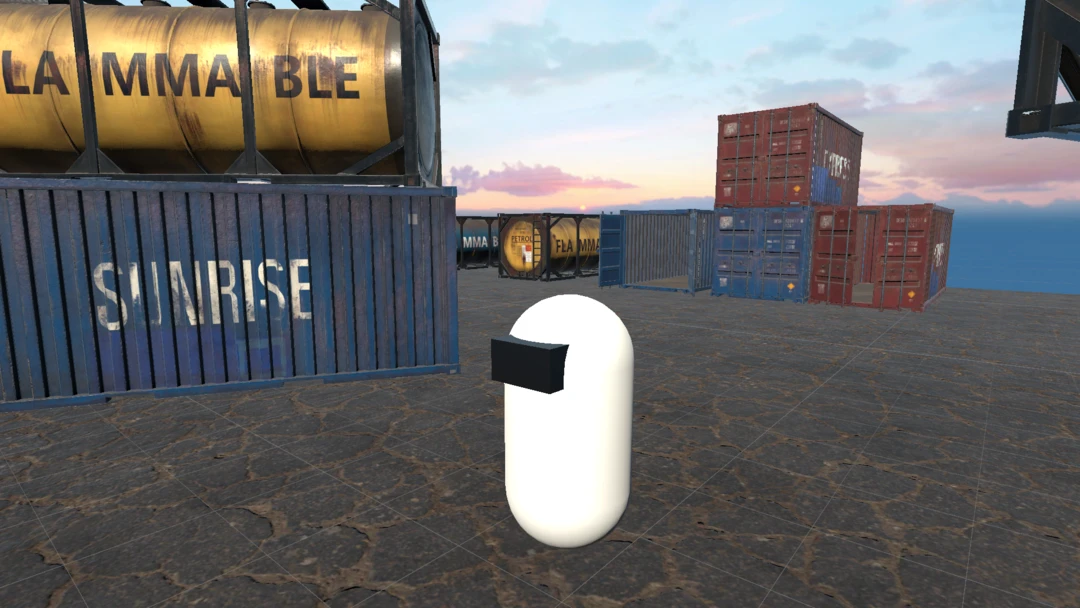
We want to optimize a Unity scene in terms of overdraw and number of triangles. Our player is restricted to a certain area and we want to remove all geometry that is not visible from that area. A good example of this is Virtual Reality games where the player is restricted to a small playable area.
Solution
We will use Simplygon's aggregator configured to use visibility culling. This will allow us to remove triangles not visible from a specified camera set, while keeping the rest of the geometry intact.
Add camera cube
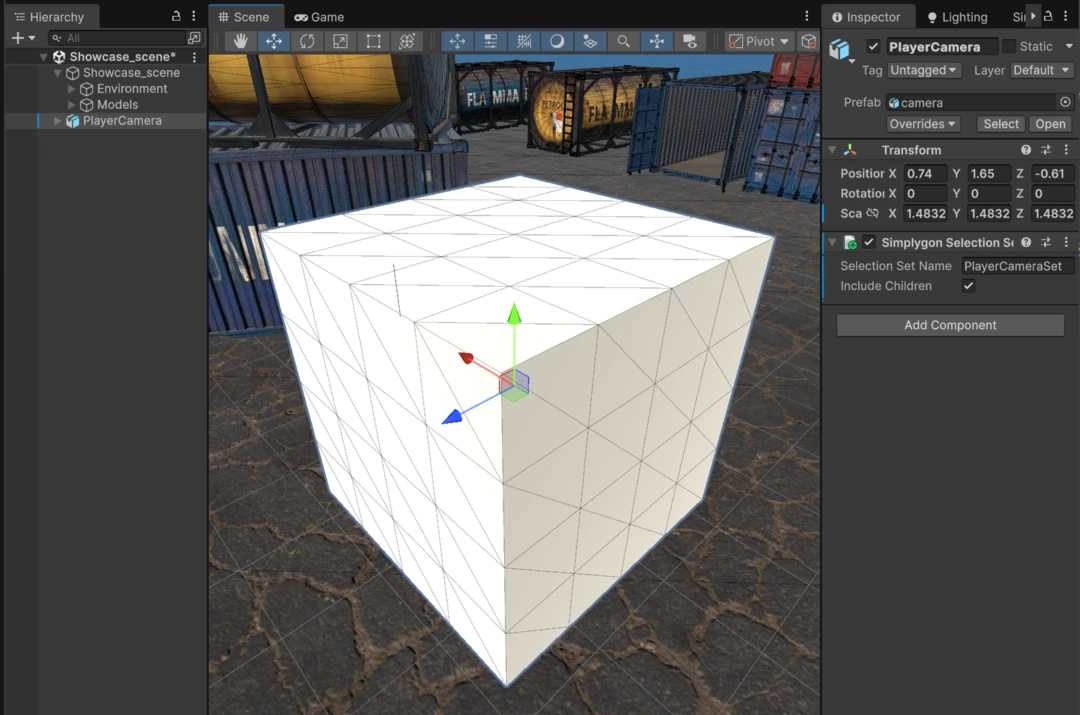
Our player is locked to a small area. We will use this specific subdivided camera cube to define this area. In each of the vertices of the cube Simplygon will place an omnidirectional camera used for visibility culling. It is important to note that in a larger area we might need not just cameras on the surface of the possible area, but also inside it.
To this camera cube we add a Simplygon Selection Set component. This allows us to reference it from the Simplygon pipeline.
Aggregation with visibility culling
In the Simplygon UI we pick Add LOD Component → Template → Advanced → Aggregation. To it we set the following settings:
- Set CameraSelectionSetName to the selection set we created earlier.
- Set CullOccludedGeometry to true.
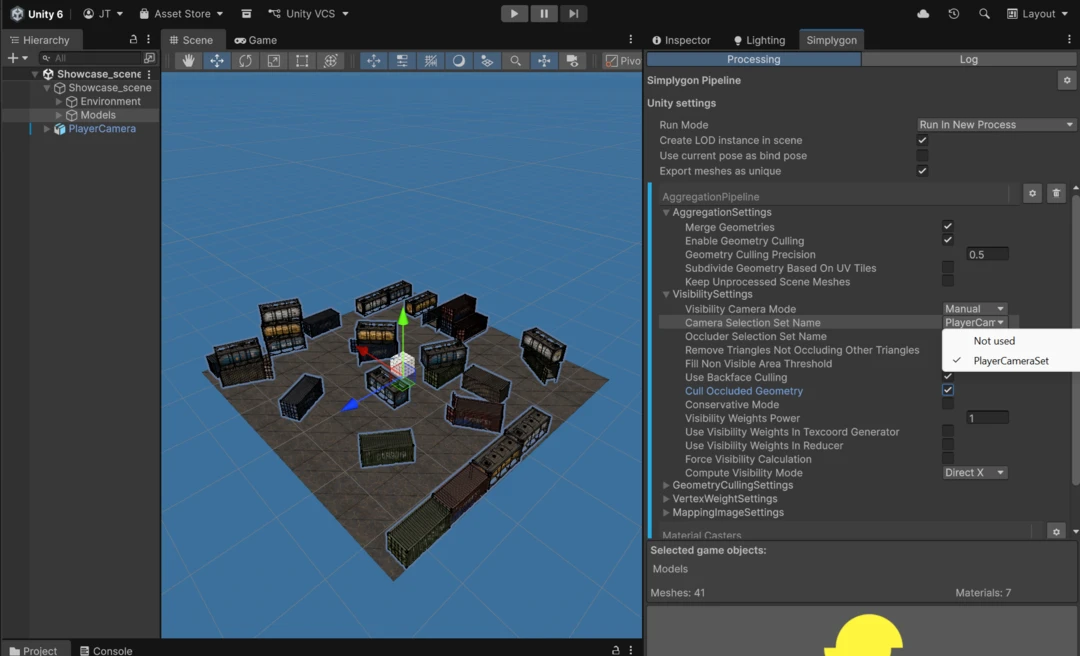
After that we select the meshes we want to optimize and click the yellow Simplygon button to start the process. After processing we get the following result. A merged model where all geometry not visible from the camera cube has been removed.
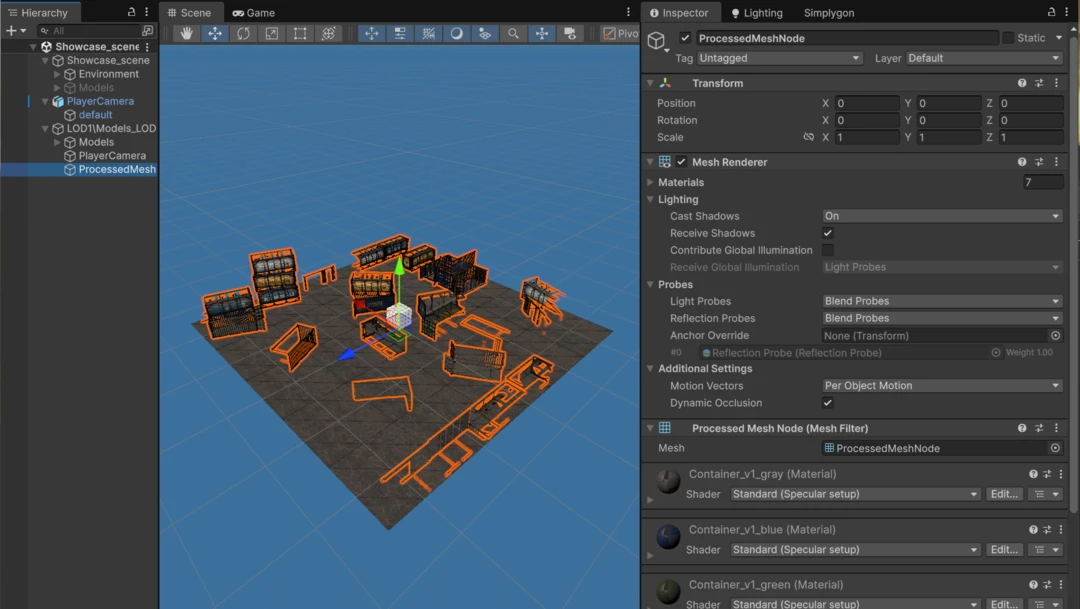
Unique meshes with visibility culling
If we do not want to merge the output model it is a simple matter of unchecking MergeGeometries. The result is then separate meshes with visibility culling applied. If we do this, it is important that we also enable Export meshes as unique. Otherwise, models which share the same geometry might be culled incorrectly as it is used in multiple places with different visibility.
With these settings we get the following result. Each model is kept separate, but all non visible geometry has still been removed. Keeping the models separated allows Unity to cull them individually with frustum culling and occlusion culling.
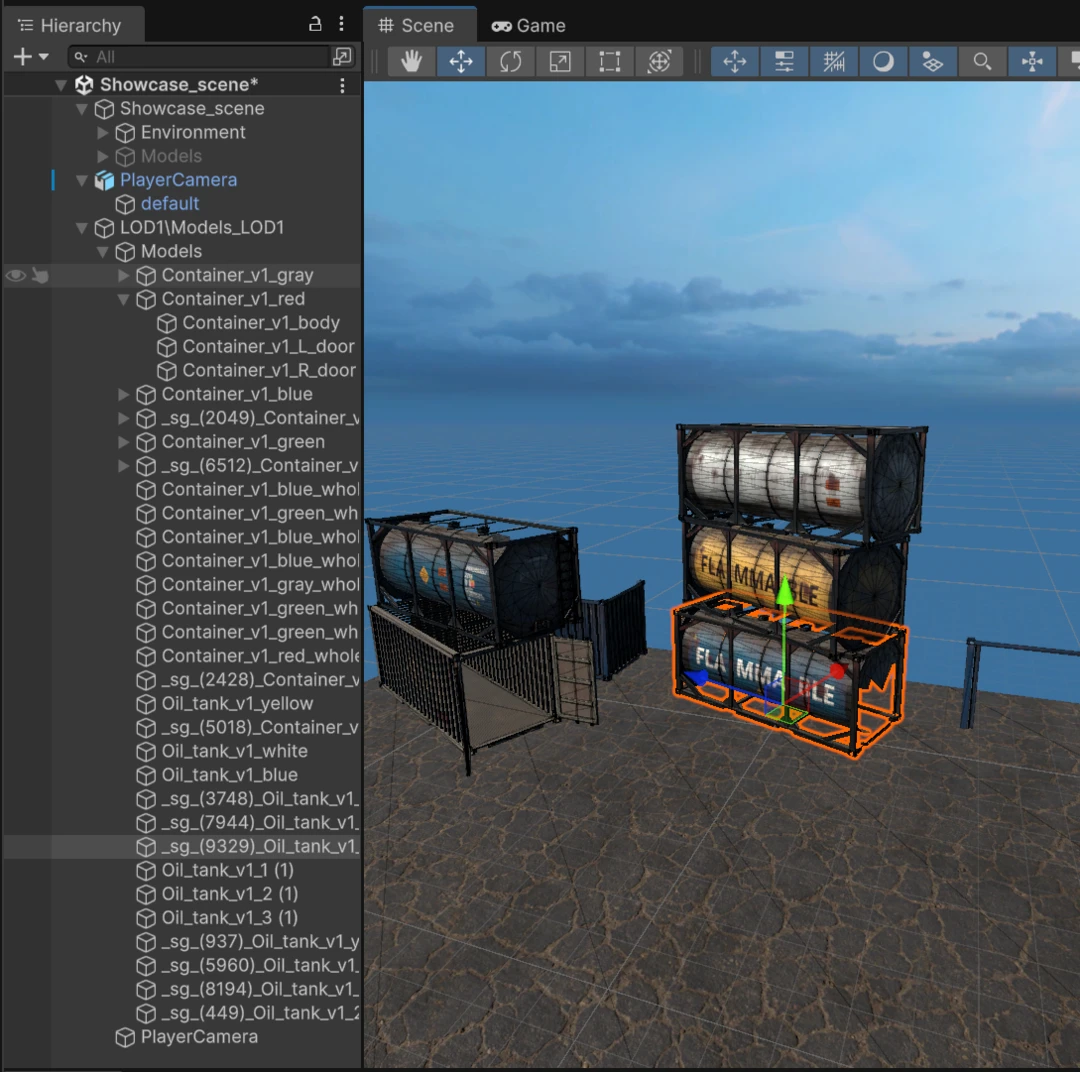
Result
So how does this look from the player's perspective? The player can't tell the difference between the original and optimized model as all visible geometry is kept intact.
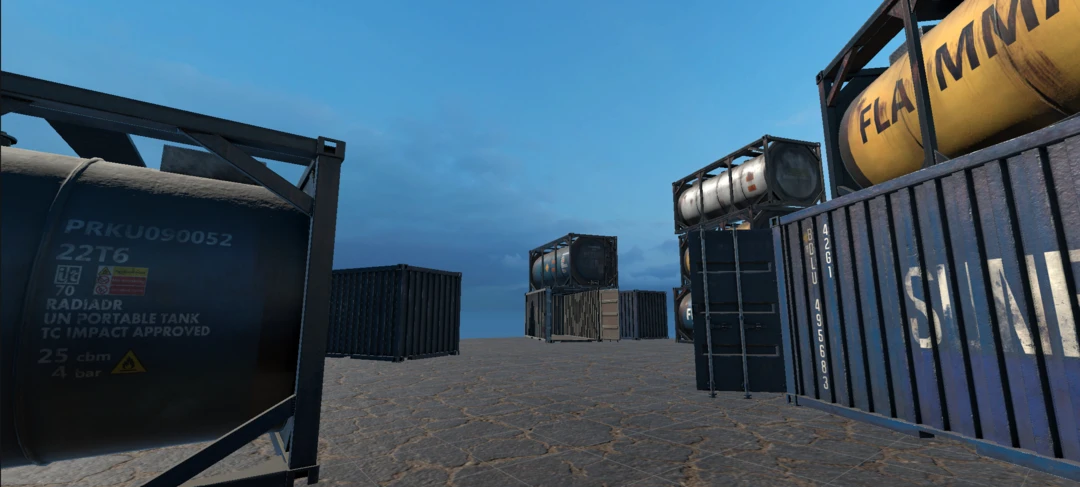
From a top down view we can see that lots of the geometry has been removed.
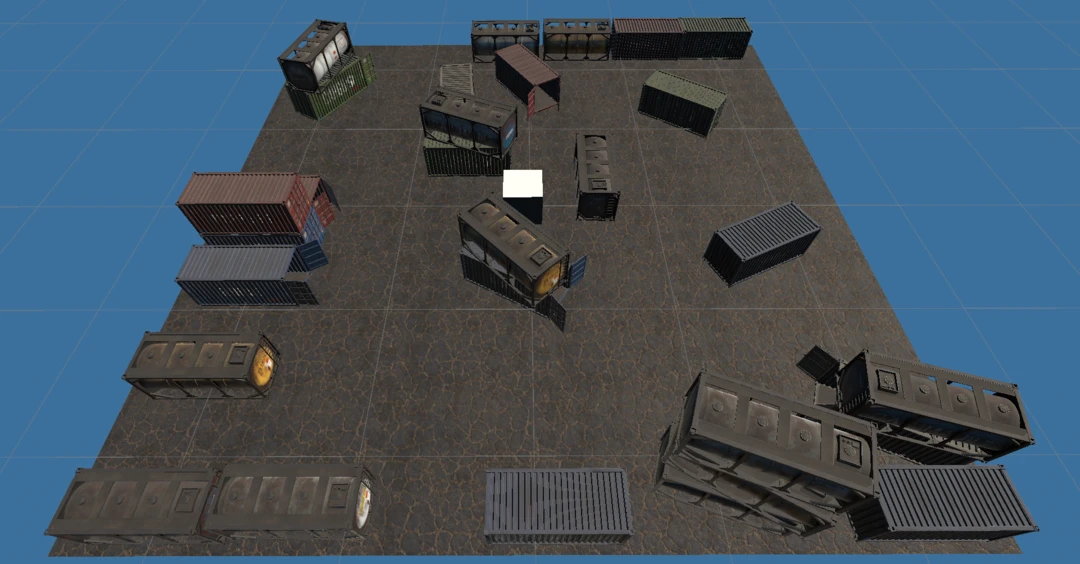
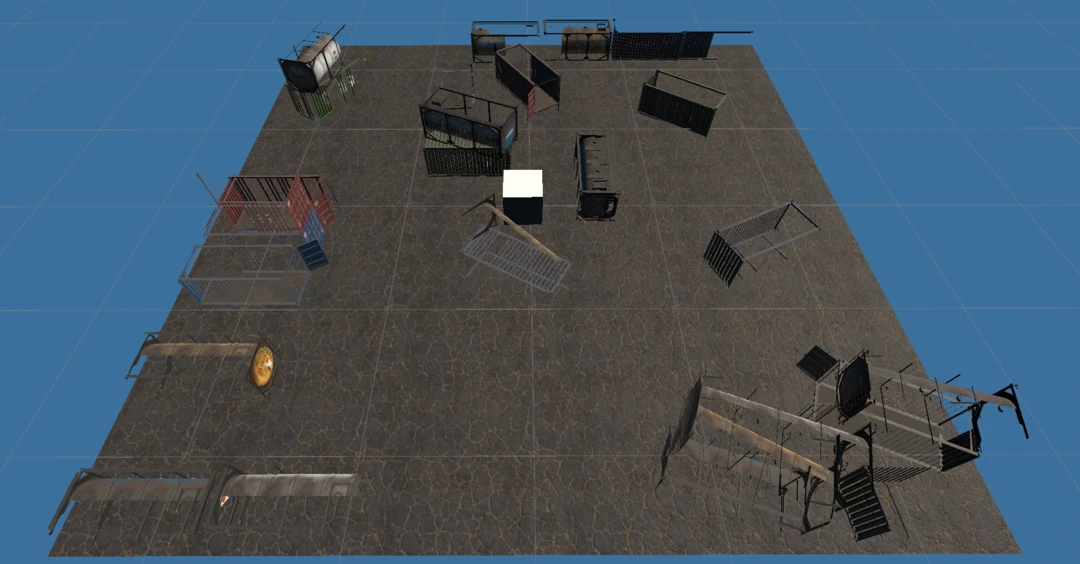
A good question is if we want to merge the models or not. Merging gives us simpler rendering, but we lose the ability to cull entire objects. Given that this is a Virtual Reality game where we cannot see all objects at once, keeping the models separate is often the better choice.
Multiple camera cubes
In a Virtual Reality game, the player often teleports between different locations. We can add additional camera cubes that cover these locations by simply copy and pasting our original camera cube. If we set the Selection Set Name to the same as our original camera cube, Simplygon will use all cameras from all cubes when performing visibility culling.
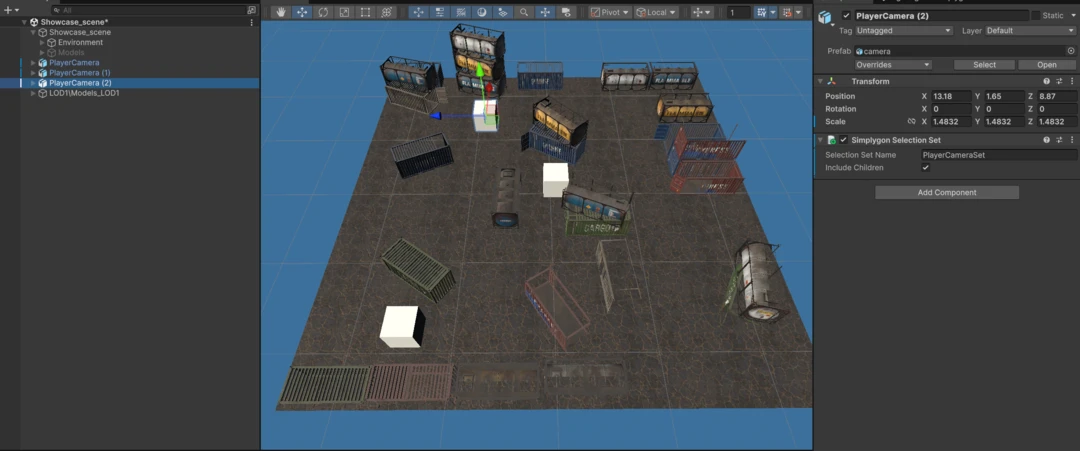
We can also do a trade-off between overdraw and memory usage by creating a unique mesh for each camera cube. In essence, having multiple versions of the world that are specifically optimized for different viewing positions. To do this we have different names for the camera cubes and run the Simplygon process multiple times, once for each camera cube.
Further reading
There are additional optimization techniques that can be used for this scenario.
- Use material merging to reduce the number of draw calls required for the scene.
- Use reduction, possibly guided by vertex weights depending on distance to the camera cube to reduce the complexity of distant geometry.
- Use remeshing for the very distant parts of the scene.
What is important is that we move away from a user interface-based approach. As soon as we figure out what optimizations we want to do, we should move to a scripted approach using the Simplygon API. This allows us to automate the optimization process and integrate it into our content pipeline.