What is the right reduction target for LOD creation?
A common question when generating LODs is which reduction target to use. Using a poor target is the root of many problems, such as LOD popping or broken assets. In this blog we’ll go through the different reduction targets available in Simplygon and give you some guidelines on where to start.

Reduction targets for automation
Let’s start by describing what you want to aim for when building an automated asset pipeline. The goal is a system where you can send in assets and it outputs optimized assets with a LOD chain. You want to avoid having to create custom settings per asset; instead you want a small number of settings classes for different asset types. For example, you might have one setting for non‑important NPCs, one for medium props, one for large props, and one for buildings. The number of classes can vary, but you ideally want to avoid bespoke per‑asset settings.
With these classes in place, you can apply large changes to your LOD strategy at low cost. You could, for example, introduce a new LOD level for all characters and benchmark if this improves performance in NPC‑heavy scenes. This workflow lets you iterate quickly and find the best balance between performance and visual quality.
Which reduction targets are available?
Simplygon's reducer can be configured with different reduction targets. This setting tells Simplygon when to stop reducing the mesh. We offer four types:
Triangle ratio and triangle count are two ways of expressing the same thing: we run the algorithm until a certain number of triangles remain. They convert via:
target_triangle_count = original_triangle_count * target_triangle_ratio
Likewise, max deviation and screen size are also two sides of the same coin. Instead of specifying how many triangles to keep, you specify how much the reduced mesh may deviate from the original. They convert with the formula from the documentation on deviation and size on screen:
target_max_deviation = scene_bounding_sphere_diameter / target_on_screen_size
Why triangle ratio is commonly used
Traditionally in the game industry, triangle ratio has been the most common way to specify reduction targets for manual LOD workflows because it is easy to understand and communicate. At Simplygon we often encounter art guidelines that specify LOD1 at 50% triangle count, LOD2 at 25%, and so on.
When switching to an automated LOD generation workflow, it is tempting to continue using triangle ratio. However, we strongly recommend not using triangle ratio or triangle count as reduction targets for automated LOD generation.
Why triangle ratio fails to deliver good results across multiple assets
We do not suggest using fixed triangle ratio or count as reduction targets. They do not consider the actual visual quality of the resulting LOD. Two assets can have very different complexity and starting triangle density. Here is an artificial example to illustrate the point.
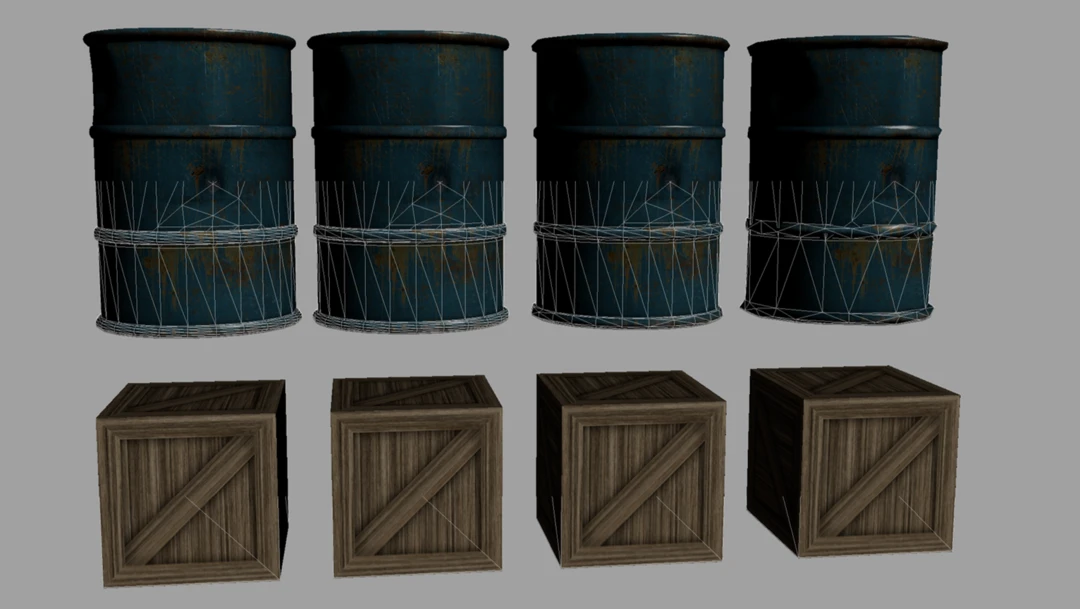
We have a 2k polygon barrel we reduce to 30% of its polygons. We can see a LOD pop, but overall the quality is quite good. This LOD would be suitable for mid‑range camera distances.
Now let's apply the same 30% reduction target to another similar asset: a crate that is a simple cube of only 12 triangles. After optimization it is reduced to 4 triangles. This is a bad result; the crate has lost its shape and is no longer recognizable. We would not want to use this LOD in the game at all.
While both assets were optimized using the same reduction target and belong to the same asset class (medium‑sized props), the results are vastly different. This illustrates that using triangle ratio or triangle count can lead to undesirable outcomes for assets with varying complexity.
A more detailed study can be read in the blog Calculating LOD transitions when using triangle ratio as reduction target, where we investigate transition distances across a larger asset set and reach the same conclusion.
Why max deviation or screen size is better
To avoid the problems of triangle ratio or triangle count, we recommend using max deviation or screen size as reduction targets. These targets are based on introduced error and yield more consistent results across different assets.
If we applied a max deviation or screen size target to our barrel and crate example, we would get the following results: the barrel is reduced, while the crate remains untouched. So both assets are now acceptable LOD models. Scripted pipeline logic should reuse the previous LOD level if there’s been little change; this improves memory usage. In real cases you probably won’t encounter extreme low‑triangle assets often, but you will still encounter cases where triangle ratio fails.
The reduction target and settings you use are closely tied to the system used to switch between LOD levels. Since you can convert between max deviation and screen size, pick the one that best fits your workflow:
- If your LOD system is distance‑based, max deviation is natural, as it can be translated into camera distance using the calculations here.
- If you switch based on screen size, then screen size is natural, as it converts directly using the calculations here. Unity uses relative screen height, which is easy to convert; this is covered in several blogs, including Automated Unity prefab optimizer.
For both max deviation and screen size it is often a good idea to introduce a “quality” scalar multiplier. This lets you adjust overall LOD quality without changing each LOD level. It effectively determines the number of pixels of error you allow in a LOD pop. Depending on your transition system, you can often get away with relatively high values of 2–4 pixels (a multiplier of 0.5–0.25).
Where to start
Here is a personal process to find a good starting point for LOD settings. This applies to assets where we want to switch LODs at around full screen size—a common case for characters and important props. Very large objects (e.g., buildings) need different reasoning because they cover large screen areas even at long distances.
Full screen size often means 1920×1080 pixels, with height being the limiting dimension. We can round this to roughly 1000 pixels in on‑screen size.
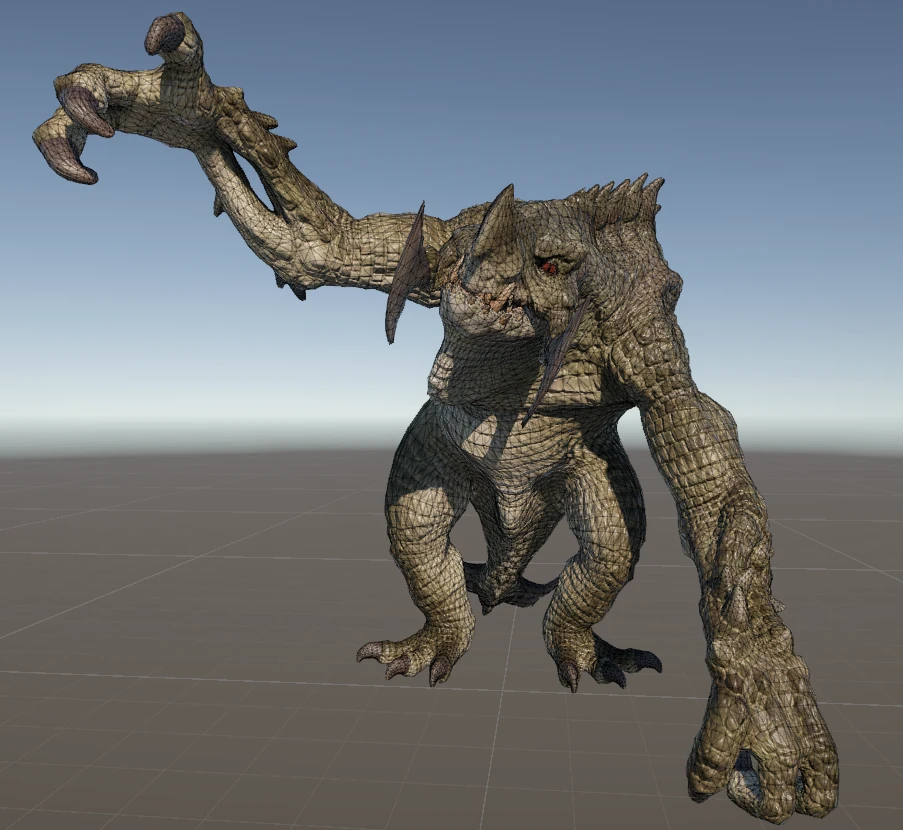
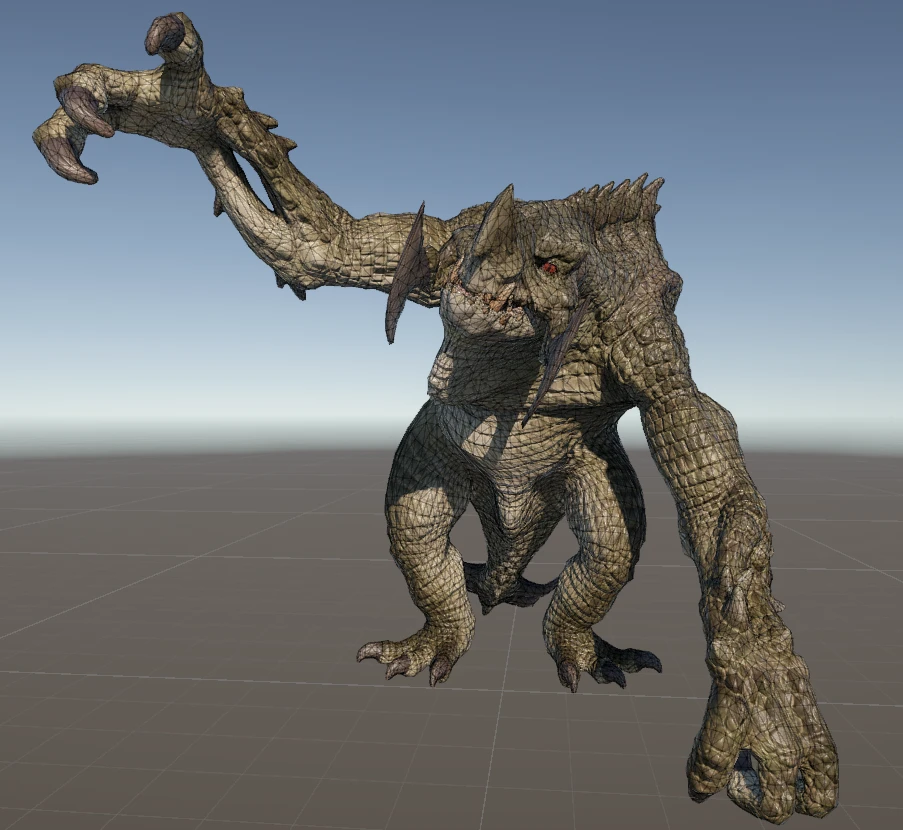
From there we can iterate; if the asset is too dense we can halve that to 500 pixels.
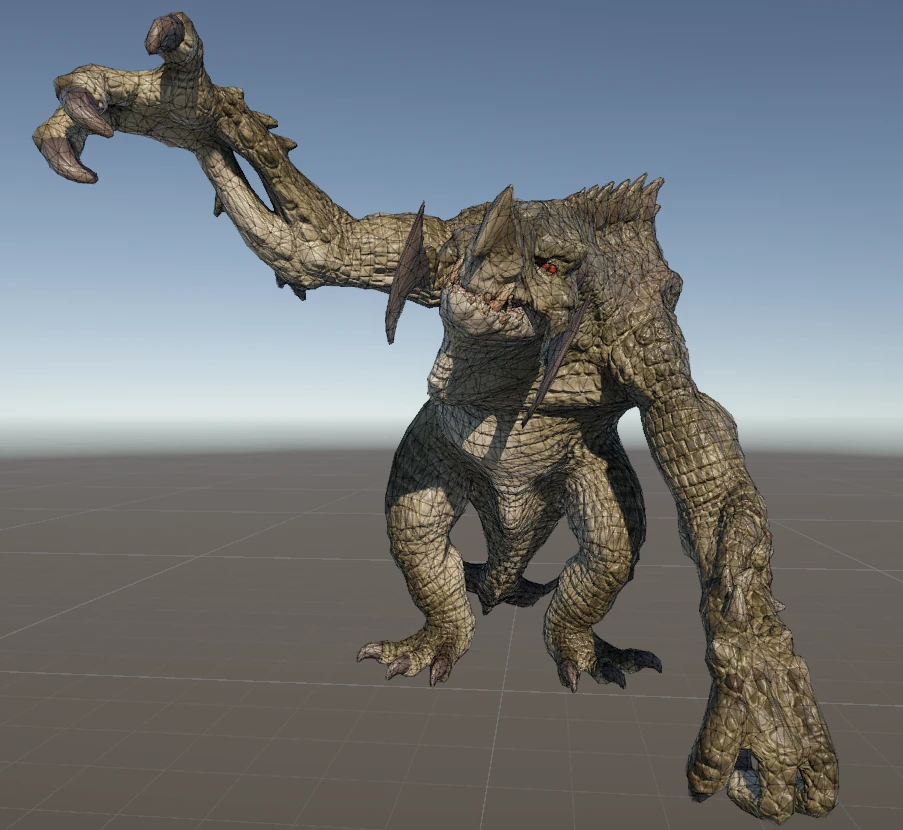
If one is too high quality and the other too low, try the midpoint at 750 pixels. Then move to the next LOD level and determine roughly at which screen size you want to switch.
| Model | Triangle count |
|---|---|
| Original | 36 k |
| 1000 pixels | 30 k |
| 500 pixels | 19 k |
When doing this investigation, evaluate a collection of representative assets, not just one.
Reduction targets for LOD0 optimization
If you have assets from different sources—packs, contractors, or previous games—you might want to add a step that optimizes the asset before it enters the game. We refer to this as LOD0 optimization. For this task either triangle count or max deviation can be used.
- Max deviation is useful for bringing assets to roughly the same quality level. With it you can specify: “Optimize every asset to a max error of 1 mm.” An example is in LOD0 optimization in Unity.
- Triangle count can cap the maximum triangles in an asset—a sanity check to avoid accidentally importing an extremely large asset. This is useful if you have little control over the source and want to prevent multi‑million triangle outliers.
Final thoughts
If you’re only testing your previous manual workflow’s settings on one or a few assets, it’s easy to fall into the trap of using triangle ratio or triangle count as reduction target. But when expanded to multiple assets these targets often lead to undesirable results. Remember: we are not optimizing assets in isolation—we are optimizing a video game. Overall scene performance and total triangle budget matter more than any single asset. If one asset ends up with slightly more triangles than intended, it is not a problem as long as global performance goals are met.
Once you find settings that work for a representative set of assets you can share them as a custom Simplygon pipeline with your art team. How to do this is covered in Customize your Simplygon pipelines. The next step is to automate the process so no one needs to click around in the UI. A starting guide: Automating your asset pipeline.
There is also more reading on advanced topics like combining multiple reduction targets: